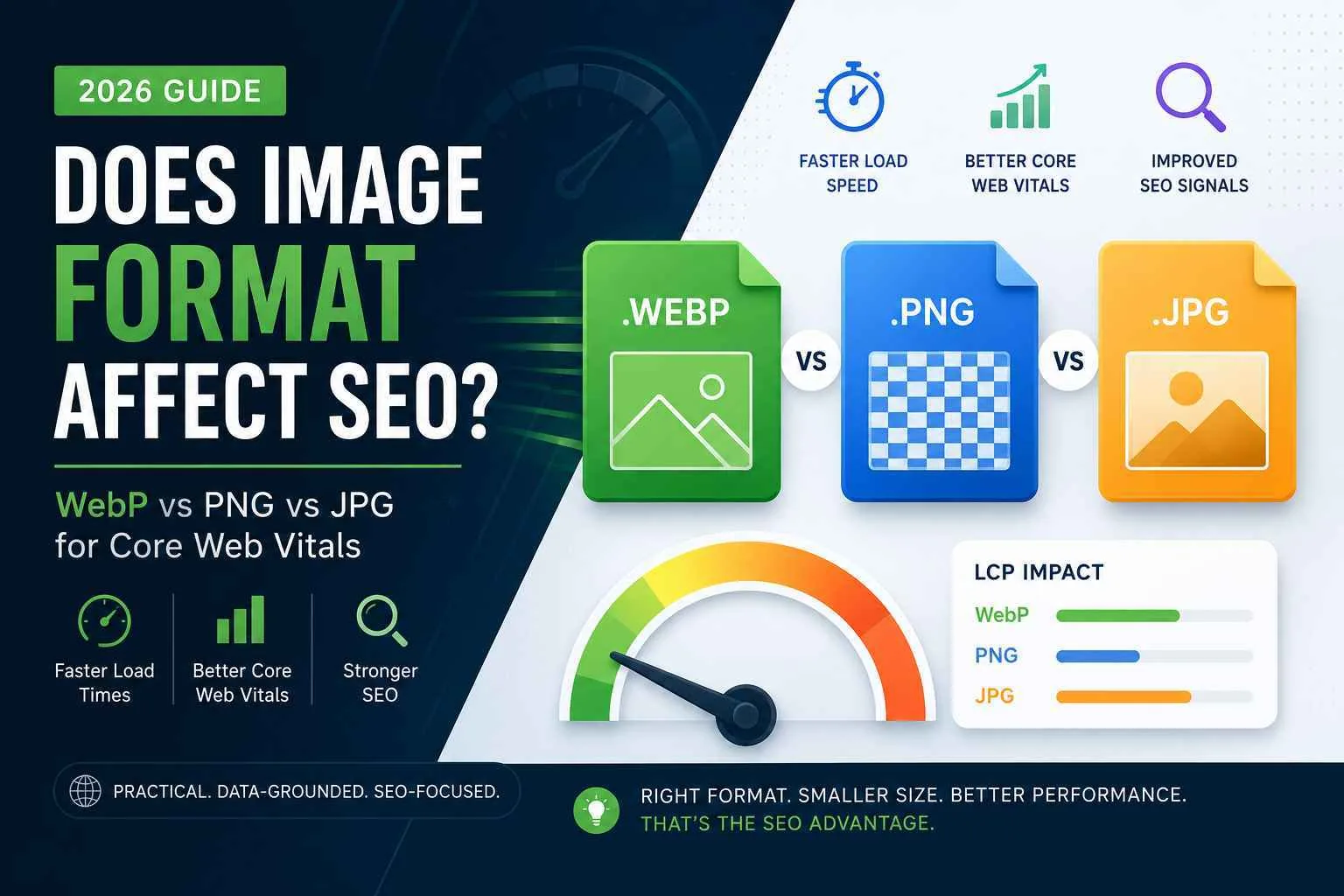
Does Image Format Really Affect Rankings?
Not directly, no. Google's algorithm doesn't have a rule that says "WebP pages rank higher than JPG pages." But that's the wrong question. The right question is: does image format affect the things Google does use as ranking signals? And there, the answer is a clear yes.
Images are usually the heaviest assets on a page. On a typical content page, they account for more page weight than HTML, CSS and JavaScript combined. That means image format is one of the highest-leverage levers you have over Largest Contentful Paint (LCP) — one of Google's three Core Web Vitals, and a confirmed part of the page experience ranking signal.
Format doesn't rank you. Speed does. Format is just the easiest lever you have over speed.
WebP vs PNG vs JPG: The Real Differences
Each format was built for a different era and a different job. Here's what actually separates them, without the marketing spin:
| Format | Compression | Transparency | Best For |
|---|---|---|---|
| JPG | Lossy only | No | Photos where some quality loss is invisible |
| PNG | Lossless | Yes (full alpha) | Logos, screenshots, graphics needing crisp edges |
| WebP | Both lossy & lossless | Yes (full alpha) | Almost everything — photos and graphics alike |
WebP isn't really competing with JPG and PNG on features — it does what both of them do, in one format, at a smaller file size. The only reason it isn't universal yet is inertia: a lot of image libraries were built before WebP had full browser support.
How Image Format Affects LCP
LCP measures how long it takes for the largest visible element — usually a hero image — to render. Google's threshold for "Good" is under 2.5 seconds. A smaller image file downloads faster, decodes faster, and paints faster. That's the entire mechanism. There's no algorithmic bonus for the file extension itself.
This matters more than it sounds like on paper. A hero image that drops from 380KB (JPG) to 240KB (WebP) at the same visual quality can shave real, measurable time off LCP — often enough to move a page from "Needs Improvement" into "Good," which is the difference that actually shows up in Search Console's Core Web Vitals report.
Quick check: Open PageSpeed Insights on any page and look for the "Serve images in next-gen formats" recommendation. If it's flagging your images, format conversion is a real, available win sitting on the table.
The File Size Comparison
Numbers vary by image content, but the pattern holds consistently across compression benchmarks and real-world testing:
- WebP vs JPG: typically 25–35% smaller at visually equivalent quality
- WebP vs PNG: typically 26% smaller for lossless, often far more for lossy WebP replacing PNG
- AVIF vs WebP: typically another 20–30% smaller, at the cost of slower encoding
When to Use Each Format
Default to WebP for everything new
Unless you have a specific compatibility reason not to, WebP should be the default export format for new images going onto any page — photos and graphics alike.
Keep PNG for icons under active editing
If a graphic is still being actively edited in a design tool with layers and transparency, keep a PNG master. Export WebP only for the final, published version.
Consider AVIF for your heaviest pages
On image-gallery or portfolio-style pages where every image is a meaningful chunk of page weight, AVIF's extra compression can be worth the slower encode time.
Converting Your Whole Image Library
Converting one image at a time in an online tool is fine for a single file. It falls apart the moment you have an existing library of hundreds of JPGs and PNGs sitting in a CMS or an images folder — which is most real sites.
I built WebP Converter Pro for exactly this gap: a free, open-source desktop app that batch-converts a whole folder to WebP (or AVIF, PNG, JPG, BMP, TIFF, GIF) in one pass, with resize presets and a watch-folder mode for anything new added later. It runs entirely on your machine — no uploads, no accounts, zero data collection, verified by the fact that the source code itself contains no networking code at all.
If you're running a real audit rather than converting one hero image, batch tooling is the only practical way through a few hundred legacy JPGs. WebP Converter Pro is free for exactly that — Windows, macOS and Linux.
Common Mistakes
- Converting format without checking dimensions — a bulk conversion is also a good moment to add missing width/height attributes, which fixes CLS at the same time
- Losing alt text during a re-export — some conversion workflows drop metadata; always spot-check a sample after a bulk run
- Over-compressing lossy WebP — pushing quality too low to chase file size creates visible artifacts on photography; test at 80–85% quality first
- Forgetting `
` fallbacks — not strictly necessary given WebP's ~97% support, but worth a `` element with a JPG fallback on anything mission-critical for very old browsers
Conclusion
Image format is a lever over speed, not a ranking factor on its own — but speed is a ranking factor, and image weight is usually the biggest speed problem a typical page has. Converting a JPG/PNG-heavy image library to WebP is one of the few genuinely free, low-risk, high-leverage technical SEO fixes available in 2026.
If you're staring down a folder of a few hundred legacy images, don't do it one file at a time. Grab WebP Converter Pro and batch it in one pass, then re-run PageSpeed Insights on your heaviest pages to see the LCP difference for yourself.
Need Help with SEO, AEO or GEO?
Let's build a visibility strategy that works across Google, AI answers and generative search.
Start a Free Consultation