TabDeck
A beautiful, feature-packed new tab page for Chrome. Every time you open a new tab, TabDeck replaces the blank page with your own personal productivity dashboard — bookmarks, notes, tasks, weather, wallpapers and more, all in one place.
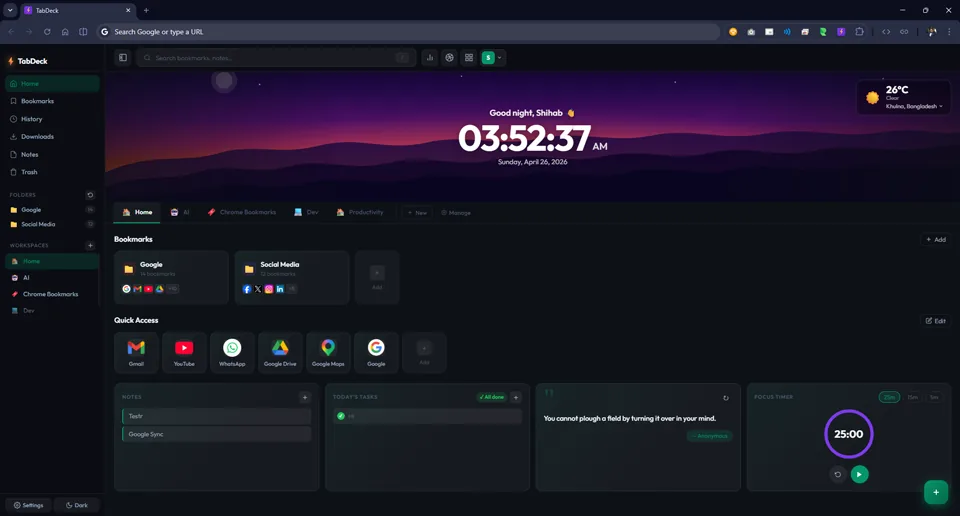
Turn every new tab into a command center.
Instead of a blank page or a generic search box, TabDeck gives you your most-visited links one click away, notes and to-do lists always visible, your Chrome bookmarks organized by workspace, and a live clock, weather widget and daily quote — all without installing a separate app.
- Separate Workspaces for Work, Personal, School and more
- Bookmarks organized into folders, with one-click import from Chrome
- Notes with #tags and pinning, and a per-workspace task list
- Save any page instantly from the toolbar popup
- Rotating wallpaper slideshow with smooth crossfade transitions
- Everything saved locally — nothing leaves your browser unless you opt into Google sync
Everything your new tab was missing.
Workspaces
Separate dashboards for Work, Personal, School and more — each with its own bookmarks, notes and tasks.
Quick Access
Pin your most-used sites as large icon tiles for one-click access, up to 8 per workspace.
Bookmark Folders
Organize bookmarks into named folders per workspace, or import your existing Chrome bookmarks directly.
Notes
Write notes with #tag support, pin the important ones to the top, saved automatically as you type.
Tasks
A per-workspace to-do list with completion tracking and a progress chip that turns green when you're done.
Popup Bookmarker
Click the TabDeck toolbar icon to save the current page to any workspace or folder in a few clicks.
Wallpaper Slideshow
Rotating background photos that crossfade every 5, 10 or 30 minutes, with adjustable overlay dimming.
Analytics
See stats on bookmarks, notes, tasks, browsing history, downloads, and activity per workspace.
Weather & Clock
Live local weather (auto-detected or set manually), plus a live clock with 12h/24h and seconds toggle.
Focus Timer
A built-in Pomodoro-style countdown timer to help you stay on task without leaving the new tab.
Command Palette
Press / to instantly search across all your bookmarks, notes and browsing history at once.
Google Sync & Backup
Optionally sign in with Google to sync data across devices, plus one-click JSON export/import.
10 hand-crafted themes, from minimal to sci-fi.
Every theme includes both a dark and a light mode variant, and covers every element — sidebar, topbar, cards, modals and the command palette.
Default
Dark glass with a purple accent and soft rounded cards. · Dark mode default
Mono
Minimal whitespace with a sage green accent and clean typography. · Light mode default
Brutal
Neo-brutalist mustard & black with sharp, unapologetic borders. · Dark mode default
Atelier
Editorial ivory & oxblood with serif headings. · Light mode default
Holodeck
Sci-fi HUD styling with a cyan grid and scanline overlay. · Dark mode default
Aurora NEW
Northern-lights green glow with a glassmorphism finish. · Dark mode default
Ember NEW
Warm fireplace tones in amber & orange for a cozy dark feel. · Dark mode default
Sakura NEW
Japanese spring in cherry-blossom pink, clean and airy. · Light mode default
Obsidian NEW
Premium black glass with specular gloss highlights and electric blue. · Dark mode default
Aura NEW
Iridescent holographic shimmer — violet into rose into sky. · Dark mode default
Get TabDeck.
TabDeck isn't on the Chrome Web Store yet — it installs in about a minute using Chrome's Developer Mode. No technical knowledge needed.
Download the files
Download the ZIP above and extract it — remember the folder you saved it to (e.g. Downloads\TabDeck-V2-main).
Open Chrome Extensions
Open Google Chrome, type chrome://extensions in the address bar and press Enter.
Enable Developer Mode
Find the "Developer mode" toggle in the top-right corner and switch it on — it turns blue.
Load TabDeck
Click "Load unpacked", navigate to the extracted folder (the one containing manifest.json) and select it.
Done
Open a new tab and your dashboard is ready. Pin the TabDeck icon from Chrome's puzzle-piece menu for quick access.
Read the Privacy Policy before signing in with Google.
See it in action.
What's new.
- Added 5 new theme packs: Aurora, Ember, Sakura, Obsidian and Aura — bringing the total to 10, each with dark and light variants
- Introduced the Popup Bookmarker for saving any page to a workspace or folder in one click
- Added the Focus Timer (Pomodoro-style countdown) and the
/Command Palette for instant search - Added Analytics with workspace, task, notes, downloads and browsing-activity breakdowns
- Added Trash with restore, Export/Import (JSON backup), and optional Google sync
Frequently asked questions.
Yes. All data is stored locally in your browser using Chrome's built-in storage. Nothing is sent to any external server unless you sign in with Google to enable sync. See the Privacy Policy for full details.
Yes — uninstalling removes all locally stored data. Sign in with Google first, or use Export Data in Settings to create a backup beforehand.
TabDeck is built for Google Chrome using Manifest V3. It may work in Chromium-based browsers like Edge or Brave, but this isn't officially supported or tested.
Yes, completely free and open source under the MIT License — no ads, no premium tier.
Open any folder card, click the three-dot menu, choose "Import from Chrome," then pick which Chrome bookmark folder to bring in.
Go to Settings, scroll to the Weather section, and type your city name manually to override automatic detection.
Yes. Click Trash in the sidebar to see recently deleted items, then click Restore to bring any of them back.
It's currently distributed directly from GitHub and installed in Developer Mode — see the install guide above, it takes about a minute.
Reach out directly via the contact page, or open an issue on GitHub.
Ready to try TabDeck?
Free, open source, and built to make every new tab useful.