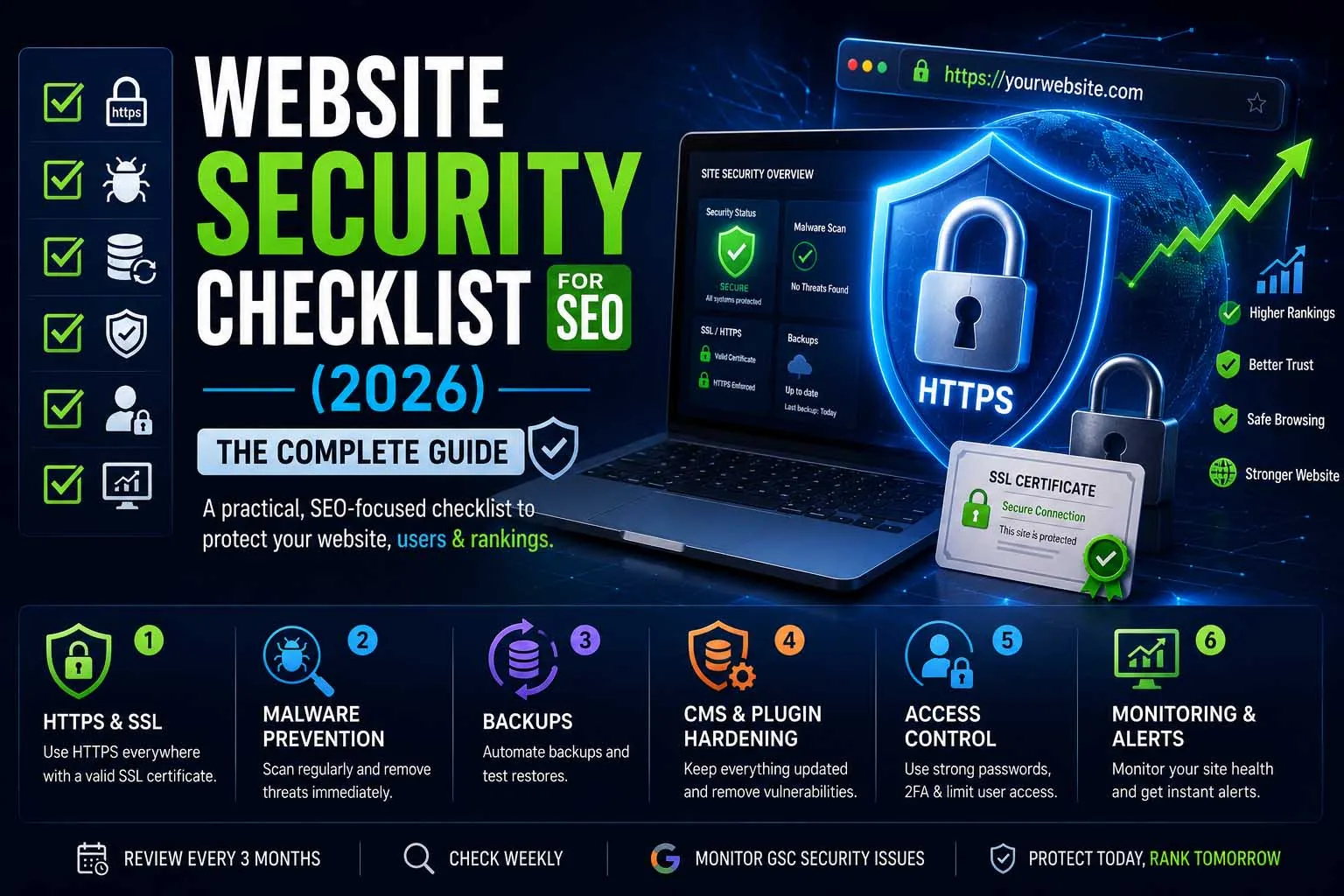
Most SEO checklists stop at meta tags, schema, and Core Web Vitals. They skip the one category that can erase every other optimization overnight: security. This guide is the practical, no-jargon checklist I run through on every site I work on — scoped to exactly what protects rankings, not full enterprise-grade penetration testing.
This is the Security Pillar Guide. For deeper dives into specific topics read: HTTPS & SSL Mistakes · Recovering Rankings After a Hack · WordPress Security Basics · Why Security is an SEO Factor
How to use this: Work through each section once fully, then re-check quarterly. None of this requires advanced security expertise — just consistency.
Why Security Belongs on Your SEO Checklist
Google doesn't separate "security" from "quality" the way most site owners do. HTTPS is a confirmed ranking signal. A malware infection gets a site flagged in Search Console and demoted or de-indexed within days. A blacklisted domain loses nearly all click-through, regardless of where it ranks. None of that requires a sophisticated attack — most incidents trace back to a handful of preventable gaps.
The good news: protecting your SEO doesn't require becoming a security expert. It requires running through the same checklist on a schedule. That's what follows.
HTTPS & SSL Checklist
HTTPS has been a ranking signal since 2014, and a "Not Secure" warning in Chrome is one of the fastest ways to spike your bounce rate. Confirm all of the following:
- SSL certificate is valid, from a trusted authority, and not nearing expiry
- Every HTTP URL 301-redirects to HTTPS — no exceptions, no loops
- No mixed content warnings (HTTP images, scripts, or stylesheets loading on HTTPS pages)
- Certificate covers all subdomains in use (wildcard SSL if needed)
- Canonical tags and internal links point to the HTTPS version site-wide
This is the most common single point of failure I see, and it's covered in full depth — including the mistakes that slip through even on sites that "have HTTPS" — in HTTPS & SSL Mistakes That Hurt Your SEO.
Malware & Blacklist Prevention
Google's crawlers typically detect malware within 1–7 days of infection. Once flagged, Chrome shows a full-page warning to every visitor, and click-through collapses to near zero — even for users who already trust your brand.
- Automated malware scanning is enabled (Sucuri SiteCheck, Wordfence, or host-level scanning)
- Google Search Console's "Security Issues" tab is checked weekly
- File integrity monitoring flags unexpected changes to core files
- Regular backups exist off-site and have actually been tested for restoration
- You know, in advance, the steps to request a Google review if flagged
If you're dealing with an active infection right now, skip ahead to the step-by-step process in Recovering Rankings After a Hack.
CMS & WordPress Hardening
WordPress alone powers a large share of the small-business web, which also makes it the most targeted CMS. The fixes are almost entirely settings changes, not code:
- Core, theme, and all plugins are kept on current versions
- Default "admin" usernames are changed; strong, unique passwords enforced
- Two-factor authentication is enabled for every admin account
- Login attempts are rate-limited or behind a CAPTCHA
- Unused plugins and themes are fully removed, not just deactivated
For the complete walkthrough — including which free plugins actually help and which just add bloat — see WordPress Security Basics Every Site Owner Should Know.
Security Headers & Server Config
These are typically one-time setup tasks, often available as a toggle in your hosting panel or CDN dashboard:
- HSTS (HTTP Strict Transport Security) header is configured
- File permissions are correctly set (755 for directories, 644 for files)
- Sensitive files (
.htaccess,wp-config.php) are not publicly accessible - A Web Application Firewall is active — Cloudflare, Wordfence, or equivalent
- Directory listing is disabled on the server
Don't have server access? Most managed hosts (and platforms like Cloudflare) expose these as one-click settings. If yours doesn't, that's worth weighing when you next choose a host.
Accounts, Access & Domain Control
Most checklists focus on the website itself and forget the accounts around it. Your domain registrar, DNS provider, hosting panel, CMS admin and Google Search Console are all ways to take your site, or your rankings, away from you. A hijacked domain or a stolen Search Console login does more damage than a defaced homepage, because the attacker controls where the site points and what Google is told about it.
- Registrar and DNS: turn on two-factor authentication, enable the registrar's transfer lock, and keep the account email on an address that doesn't depend on the domain you're protecting
- Hosting and CDN: use unique passwords, two-factor authentication and a separate login per person instead of one shared account
- Search Console and Analytics: review the users and permissions list every quarter and remove anyone who no longer needs access; an owner you don't recognise is a red flag
- Least privilege: give editors the Editor role rather than Administrator, and give contractors time-limited access
- Offboarding: when a freelancer or employee leaves, remove their access the same day, including API keys and FTP or SSH accounts
- Password manager: keep credentials in one, and never email passwords or paste them into chat tools
Quick win: if you can only enable two-factor authentication in one place today, make it your domain registrar. Whoever controls the domain controls the website, the email and every redirect.
Security Headers: What Each One Does
Security headers are short instructions your server sends with every page. They don't change how the page looks, and most can be added in minutes on a modern host or CDN. This is a sensible starting set:
| Header | What it does | Risk of adding it |
|---|---|---|
Strict-Transport-Security | Tells browsers to use HTTPS only for your domain | Low once HTTPS works everywhere; hard to undo, so start with a short max-age |
X-Content-Type-Options: nosniff | Stops browsers guessing file types, which blocks some content-injection tricks | Very low |
Referrer-Policy | Controls how much of your URL is shared when visitors click outbound links | Very low; strict-origin-when-cross-origin is a common default |
X-Frame-Options or frame-ancestors | Stops other sites from embedding your pages in a frame (clickjacking) | Low, unless you embed your own pages elsewhere on purpose |
Permissions-Policy | Switches off browser features you don't use, such as camera or geolocation | Low |
Content-Security-Policy | Restricts which scripts, styles and images a page may load | High: a strict policy can break ads, analytics and inline scripts, so test before enforcing |
Start with the first five, then treat a full Content Security Policy as a separate project with its own testing. After you deploy, check the result with a free header scanner such as SecurityHeaders.com.
Third-Party Scripts & Supply-Chain Risk
Every script you load from another domain, whether analytics, chat widgets, tag managers, ad networks or font and icon CDNs, runs with the same power as your own code. If one of those providers is compromised, or a plugin quietly adds a new script, the problem reaches your pages without anyone touching your server. This is also how many "my site redirects to spam" cases begin.
- Inventory what loads: open your key pages with browser DevTools (Network tab) and list every external domain. Remove anything nobody can justify.
- Prefer fewer vendors: each extra domain is one more thing that can fail or be abused.
- Pin versions and use Subresource Integrity: for libraries loaded from a CDN, pin an exact version and add an
integrityattribute so the browser rejects a tampered file. - Treat tag-manager access like admin access: anyone who can publish in Google Tag Manager can run code on your site.
- Re-check after every plugin or theme change: compare the list of external domains before and after.
Ongoing Monitoring Checklist
Security isn't a one-time audit — it's a habit. These four checks take under 15 minutes a week combined:
| Check | Frequency | Tool |
|---|---|---|
| Search Console Security Issues | Weekly | Google Search Console |
| Safe Browsing status | Monthly | Safe Browsing Transparency Report |
| External malware scan | Monthly | Sucuri SiteCheck |
| Uptime / anomaly detection | Continuous | UptimeRobot (free tier) |
Your First Hour After a Suspected Hack
Having a plan in advance saves hours. If you suspect an infection, work through these steps in order and keep notes on everything you change:
- Confirm it. Check the Security issues and Manual actions reports in Search Console and run an external scan.
- Preserve evidence. Take a backup of the infected site (files and database) and save the server logs before you clean anything. You will need them to find the entry point.
- Contain it. Change hosting, CMS, database and FTP or SSH passwords, revoke API keys, and switch on maintenance mode if the site is serving malware.
- Call your host. Many hosts can isolate the account, scan other sites on it and restore a clean server snapshot.
- Clean and patch. Follow the step-by-step process in Recovering Rankings After a Hack.
What to Prioritise by Site Type
Not every site faces the same risks. Use this table to decide where your first hour is best spent:
| Site type | Biggest risks | Start with |
|---|---|---|
| Portfolio or brochure site | Expired certificates, weak hosting logins, outdated third-party scripts | HTTPS, registrar two-factor authentication, a script inventory |
| WordPress blog or business site | Outdated plugins, weak admin passwords, pirated themes | Updates, two-factor authentication, backups, WordPress hardening |
| Online store | Card-skimming scripts, fake accounts, abandoned plugins | Script control, a firewall, a payment gateway that hosts the card form |
| Site with comments or user content | Spam links and injected content | Moderation, rel="ugc" on user links, spam filtering |
Tools for Auditing Site Security
| Tool | Best For | Cost |
|---|---|---|
| Sucuri SiteCheck | External malware & blacklist scan | Free |
| Google Search Console | Security Issues, manual actions | Free |
| Wordfence (WordPress) | Firewall, scanning, login security | Free / Paid |
| SSL Labs Server Test | Certificate & HTTPS config grading | Free |
| UptimeRobot | Uptime & anomaly alerts | Free up to 50 monitors |
Run through this checklist today, then put a recurring reminder on your calendar for 90 days out. The handful of minutes this takes is nothing compared to the months of ranking recovery a single missed item can cost.
Frequently Asked Questions
No. Most of the rankings-protecting work is basic hygiene — HTTPS, updates, backups, and weekly monitoring. You don't need deep cybersecurity expertise, just consistent habits.
A full pass every 3 months, plus a quick check after any CMS, theme, or plugin update. Weekly, just glance at Google Search Console's Security Issues tab.
HTTPS enforced site-wide with no mixed content. It's the one item that's both a direct ranking signal and the easiest to get wrong silently.
Yes, for the majority of items. Most require no coding — just settings changes in your CMS, hosting panel, or a free plugin. The few that need technical help (server headers, WAF setup) are one-time tasks.
Partly. HTTPS is a lightweight ranking signal, and pages flagged for malware or spam can be demoted or removed from results. Most of the damage is indirect: browser warnings, lost visitor trust and injected spam pages that compete with your real content.
Yes. Free certificates such as Let's Encrypt use the same encryption as paid ones. What matters is that the certificate is valid, renews automatically and covers every hostname you use.
Open the Security issues and Manual actions reports in Search Console, back up the site and server logs, change every password, then clean and patch the site. Request a review only once you have verified it is clean.
Worried a Hack Could Tank Your Rankings?
Security audits, malware cleanup, and hardening — so a breach never costs you the rankings you've worked for.
Get a Free Security Consultation